
Reviewing & commenting
Pinned annotations, threads, mentions, statuses, labels, and everything about feedback.
Threads and replies
Every pin opens a thread. Reply to keep a discussion in one place instead of scattering it across reply-all email. Threads stay with the pin and the version they were made on, so the context is never lost.
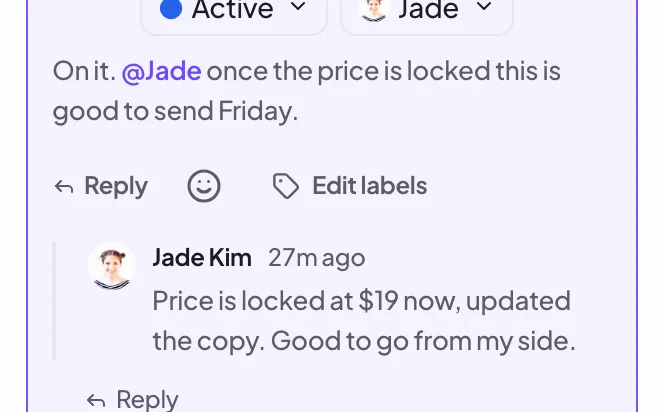
Mention someone in a comment
Type @ in a comment to mention someone. They get a notification that points straight at the comment, and it shows up in their activity feed. The autocomplete list is everyone who already has access to that email — its owner and the reviewers you've invited — on every plan, including Free. On a Team plan, sharing an email with your workspace adds every member to the list too, so you can reach a colleague who was never invited to that specific email.
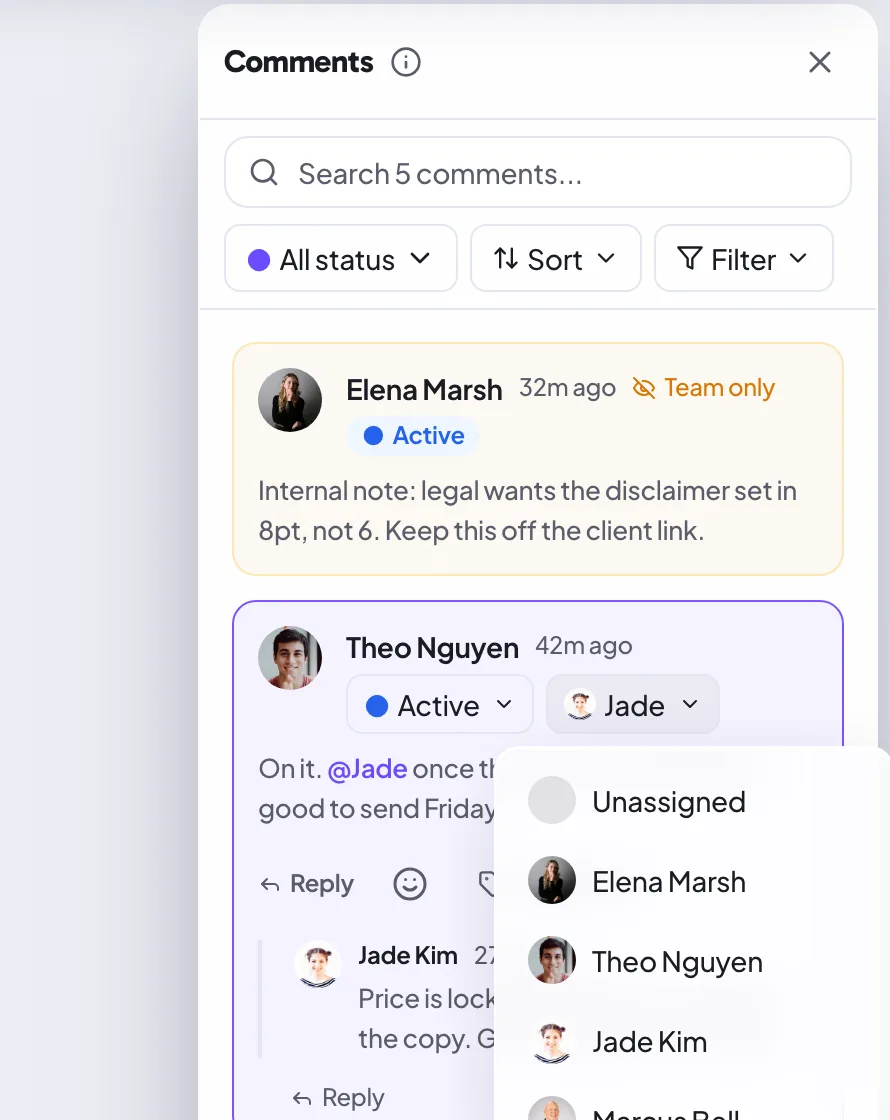
Assign a comment
Assign a comment to one person to make it clear who owns the fix. Open the comment's assignee picker and choose someone with access to that email — its owner or an invited reviewer — then filter to "assigned to me" so each person sees just their list. This works on every plan, including Free; a Team plan additionally puts every workspace member in the picker on shared emails.
Comment statuses
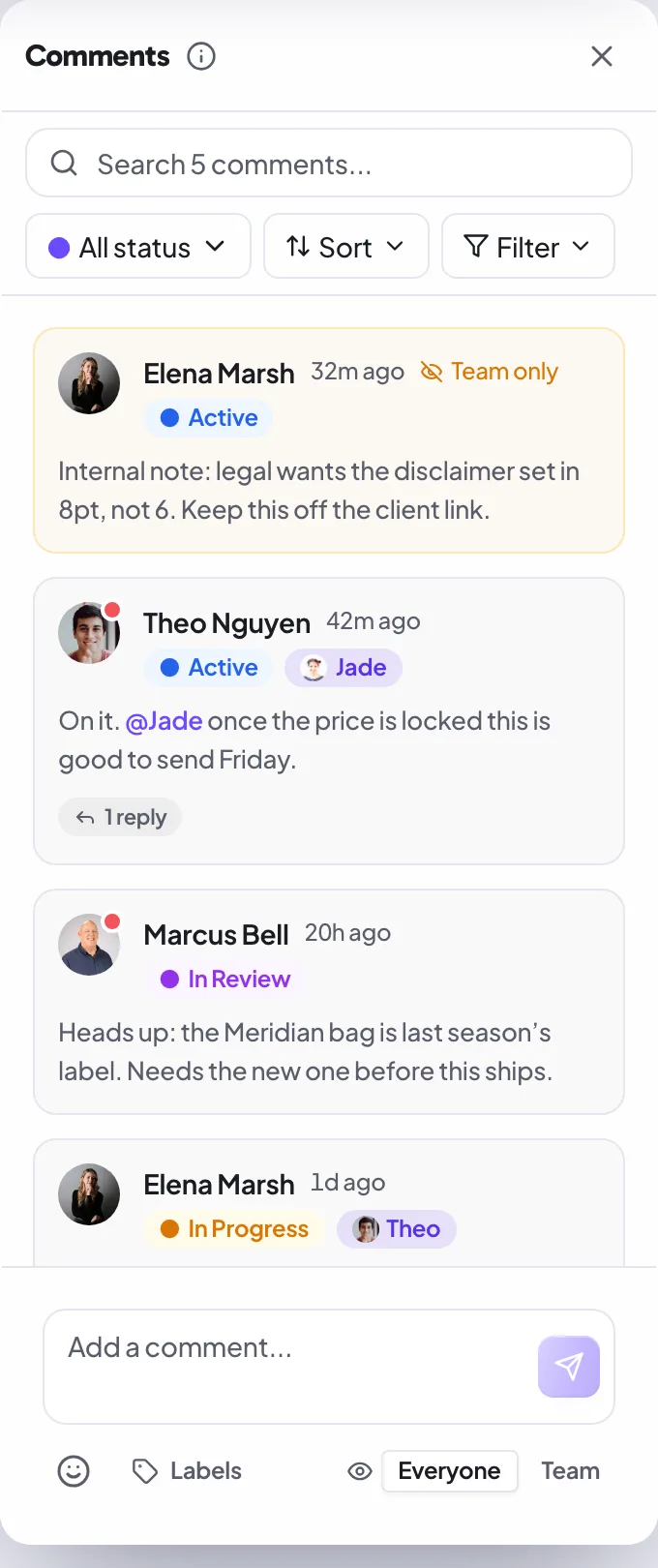
Each comment carries a status so a long review stays legible at a glance:
- Open is the default for a new comment.
- In progress means someone is working on it.
- In review means the change is done and waiting for a check.
- Resolved closes it out, and the marker animates to a green check.
When a new version of the email comes in, every comment on the previous version is automatically marked resolved, so each version starts its review with a clean slate while the old feedback stays on record.
Comment labels
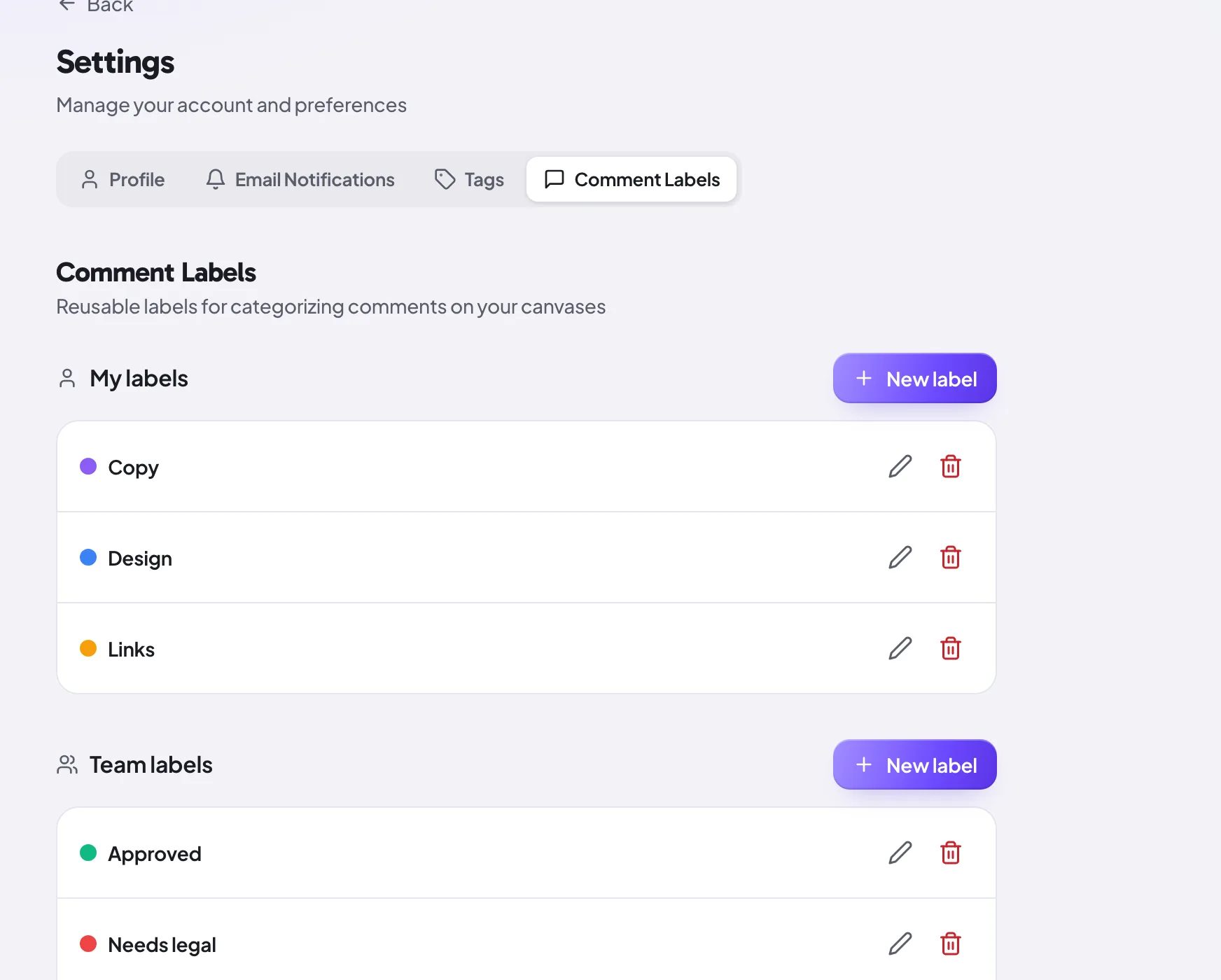
Labels group feedback by type: copy, design, links, legal, whatever you use. Apply one or more to a comment, each with its own color, then filter the thread down to a single label to focus.
Labels live in a reusable library with two scopes. Personal labels are yours alone and follow you across every email. Team labels are shared with your whole workspace, so everyone tags feedback the same way. You manage both from settings.
Private and team-only comments
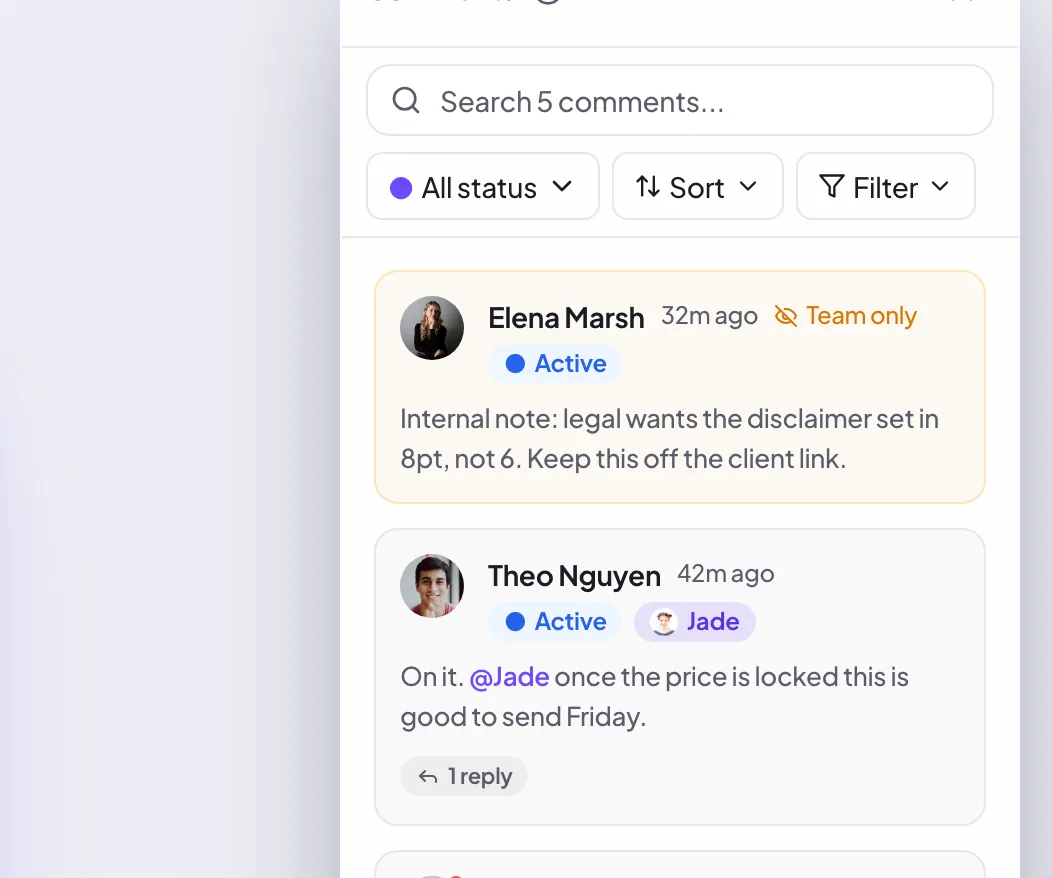
TeamNot every note is for the client. On a team canvas, mark a comment as team-only and it stays inside your workspace, invisible to guests on a share link. Internal notes and client-facing notes can live on the same email without leaking.
Team-only comments are tinted amber in the sidebar so you can tell at a glance which notes your reviewers can and cannot see. Team-only visibility is a Team plan feature.
Reactions
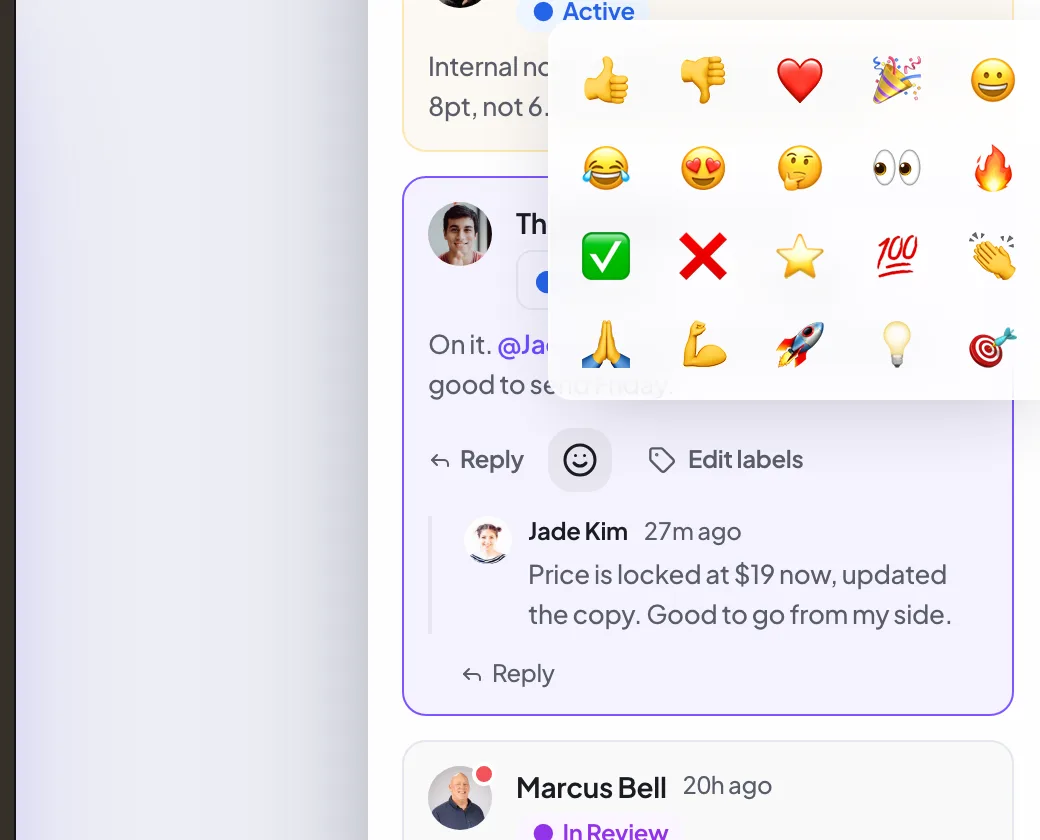
React to a comment with an emoji when a full reply is overkill. Open the reaction picker on a comment and pick one; reactions group by emoji and show who reacted, so a quick "yes, agreed" does not add another line to the thread.
Search and filter comments
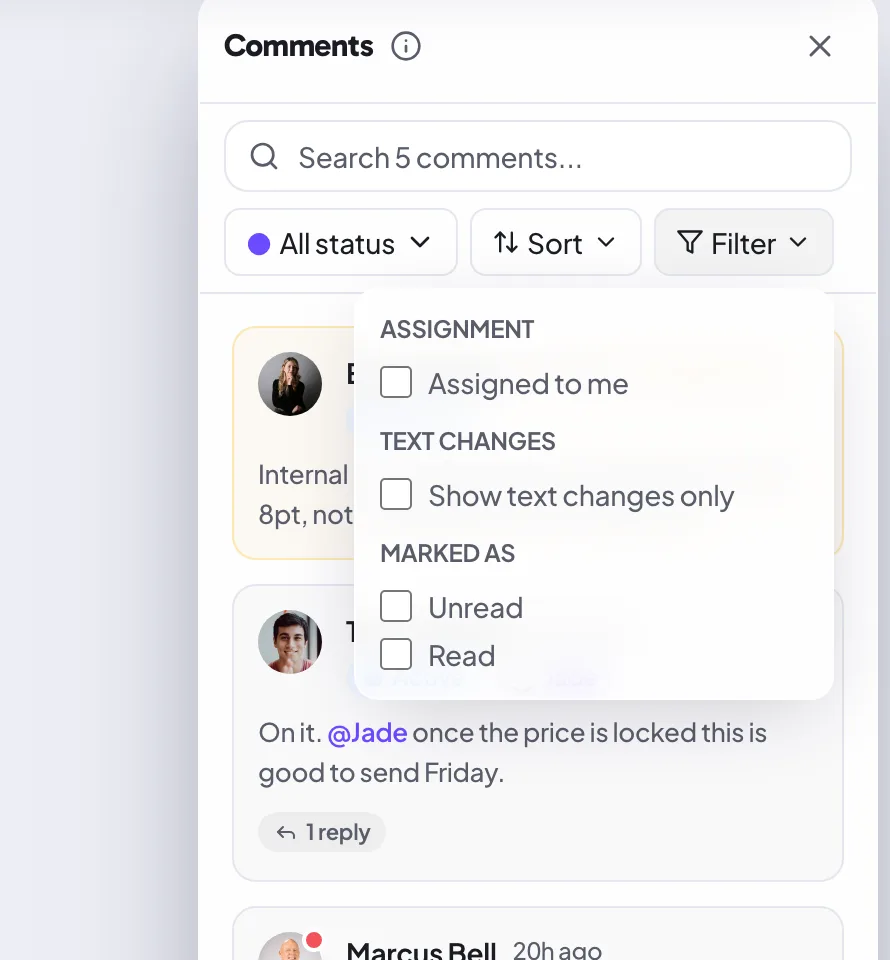
The comments sidebar can search by text and filter by status, read state, "assigned to me," and label, then sort by newest, oldest, or by position on the page. On a busy email this turns a wall of feedback into the exact subset you need.
Suggest a text edit
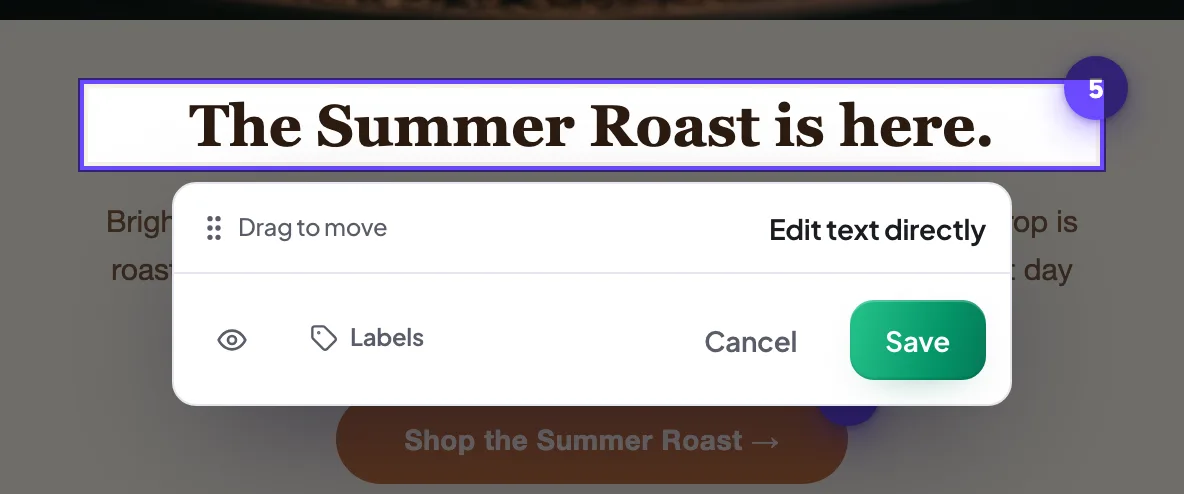
When the fix is wording, click the text in the email and edit it inline. Proofel captures your change as a suggestion and shows the original and the new wording side by side, so a copy change reads as a clear before and after rather than a paragraph describing it.
Pause commenting
When a round is done, use the pause commenting button in the canvas header (it collapses into the overflow menu on smaller screens) to freeze the thread. Existing comments stay visible and readable, but no new ones can be added until you press it again to resume. It is a clean way to signal "feedback window closed" without deleting anything.
Deadlines
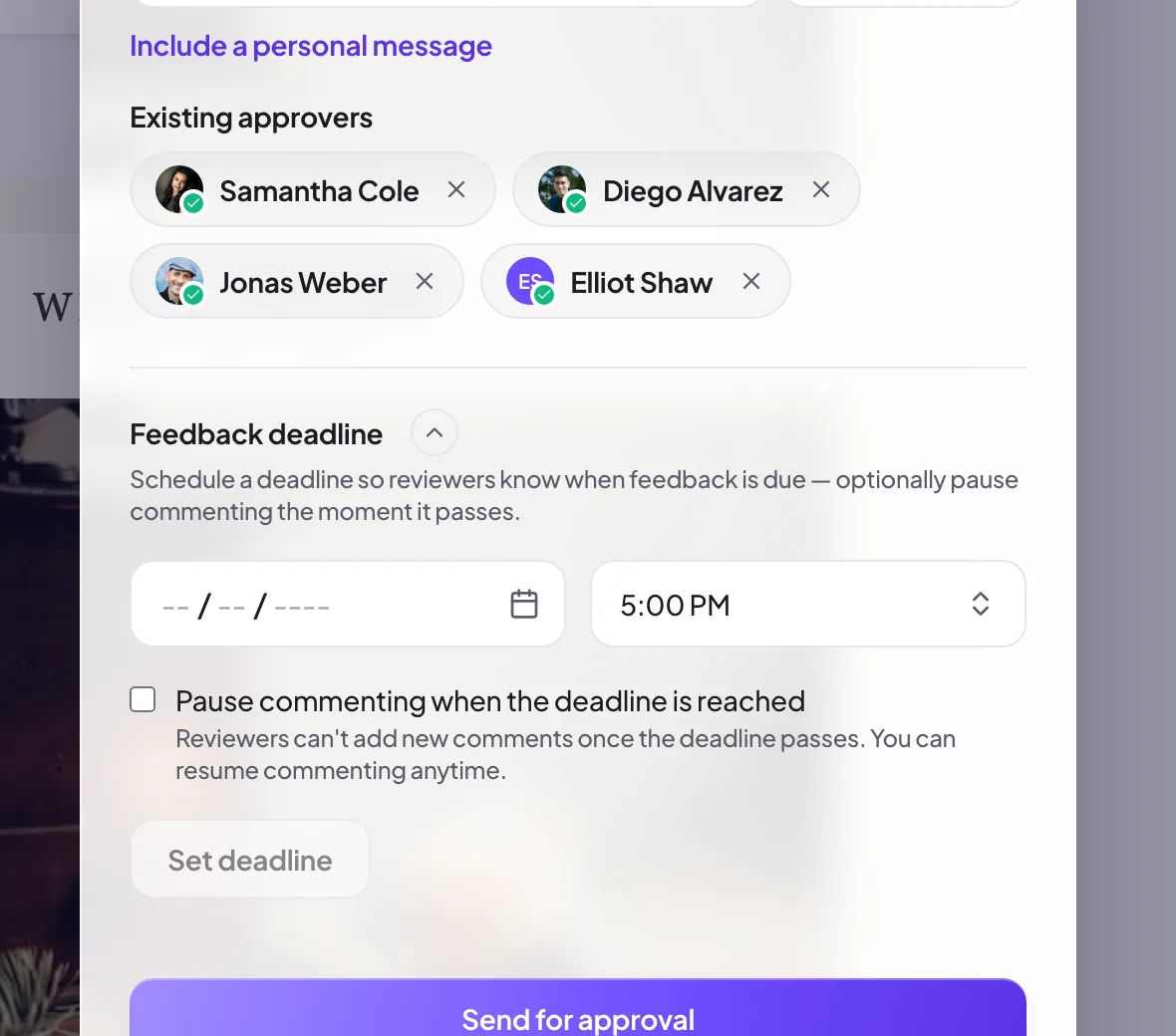
ProDeadlines are set in the Send for approval dialog. Pick a date so everyone knows when feedback is due, and tick "Pause commenting when the deadline is reached" to have Proofel close the window automatically: reviewers can't add new comments once it passes, and you can resume anytime. Feedback deadlines are available on Pro and above.
Review on your phone
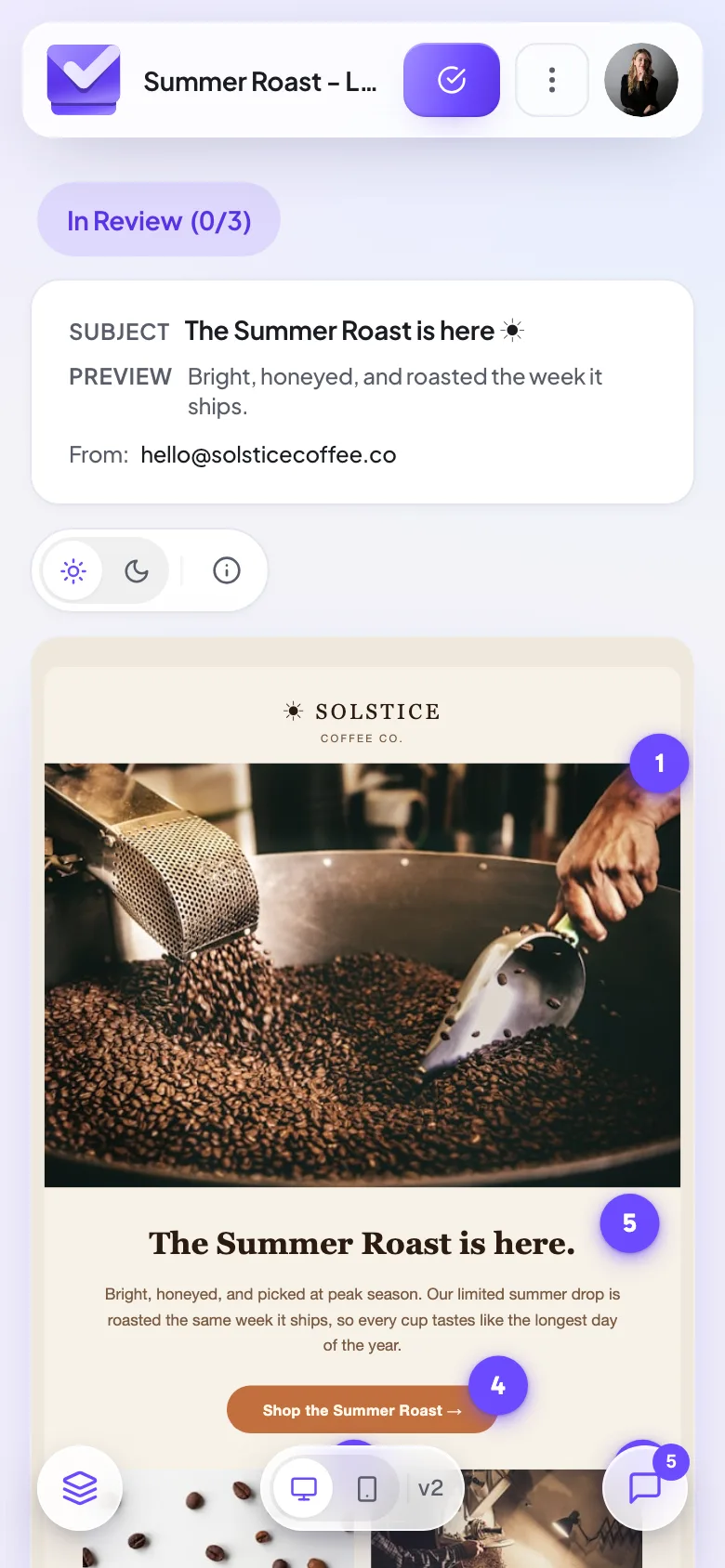
Everything works in the mobile browser, with no app to install. Open a review link on your phone and the email renders full width; tap to read the thread, add a comment, and approve or request changes on the spot. Owners can manage the dashboard and pipeline from a phone too.
Still need a hand?
Cannot find what you are looking for? Our team is happy to help.
14-day all-access trial · no credit card required · reviewers never need an account
Comment mode and pinned annotations
Switch the viewer from Browse to Comment, then click anywhere on the email. Your note pins to that exact spot as a numbered marker, so "the button under the hero" becomes a pin on the button itself. Pins carry through to every reviewer and stay attached to the design.
If the fix is wording rather than layout, attach a suggested change instead (see Suggest a text edit).