
Sharing & approvals
Share links, access levels, expiry, approvals, passwords, and the guest experience.
Share links and access levels
The Share button creates a view link. A guest who opens it gets a read-only view of the email; on a team canvas your teammates who open it can also comment and take part. To ask for a decision instead, use Send for approval.
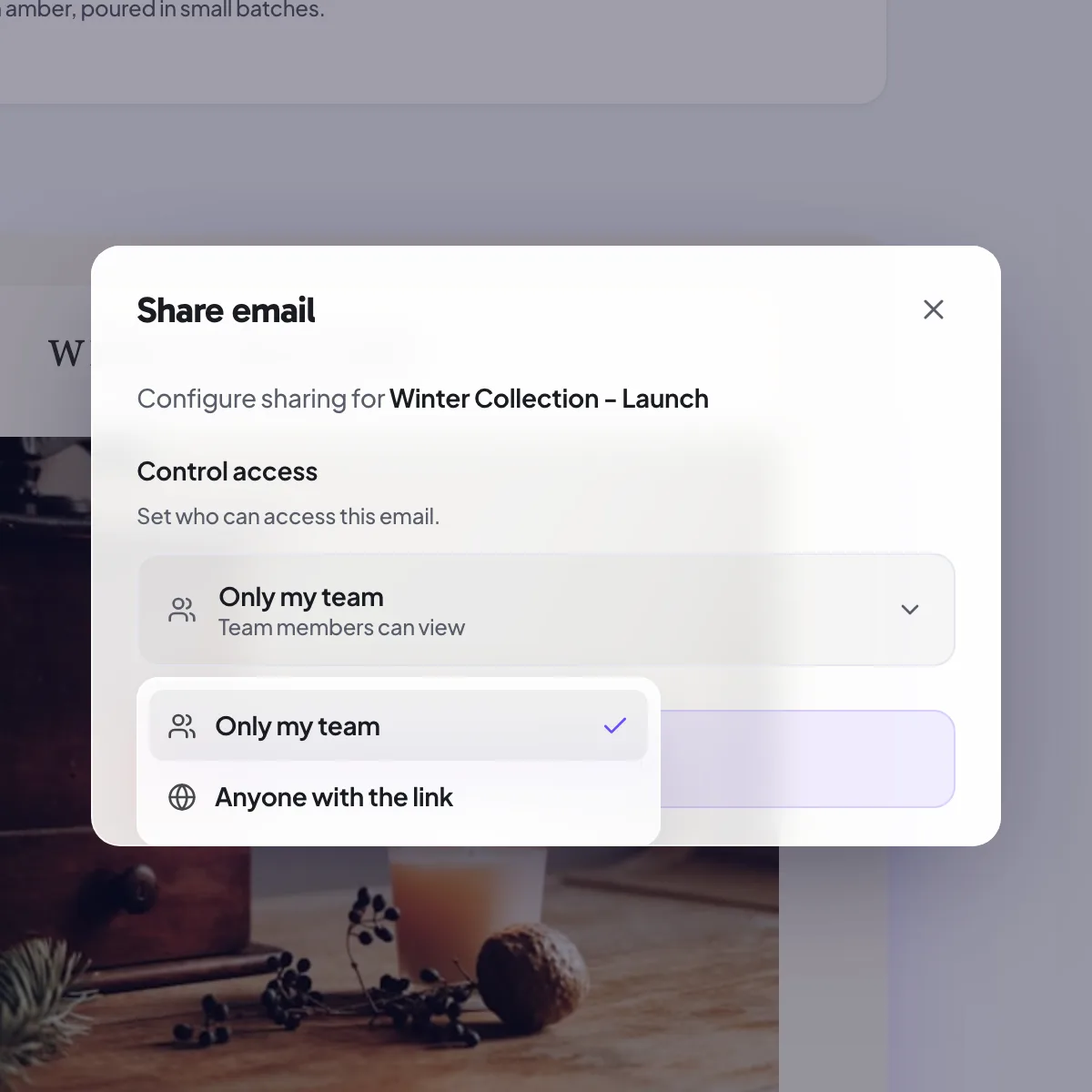
The share dialog sets who can open the link:
- Only me keeps it private to you.
- Only my team opens it to everyone in your workspace.
- Anyone with the link lets any recipient open it, no account needed.
Expiring links
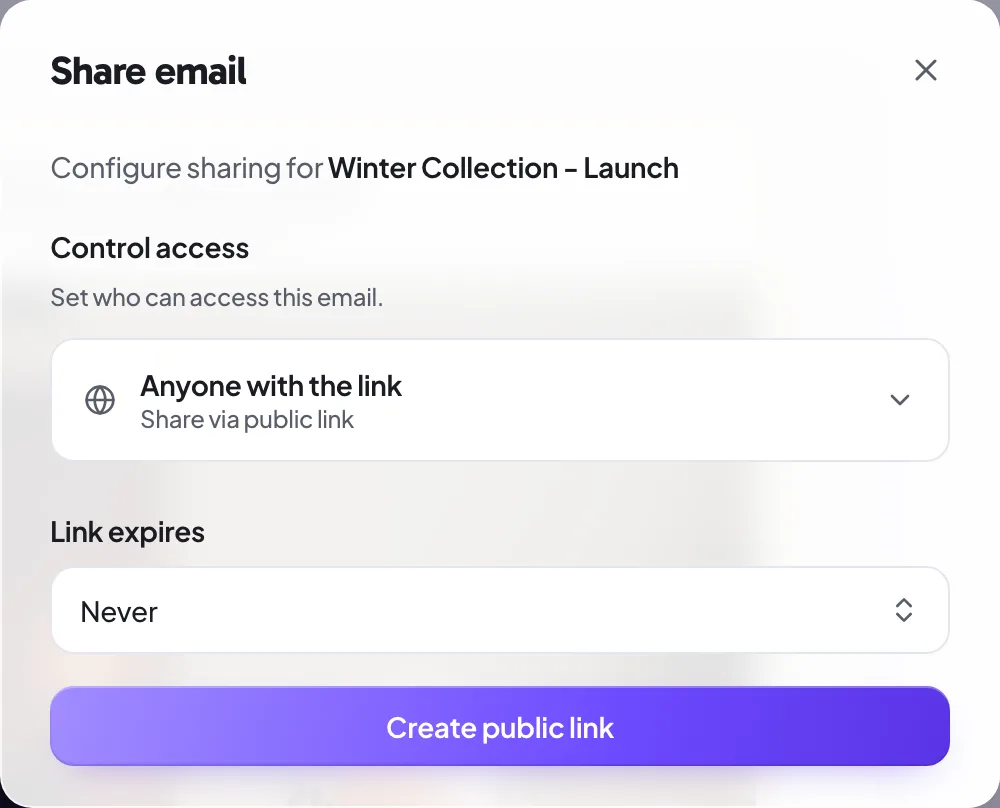
Give a share link a lifespan from the expiry selector in the share dialog. Choose 7, 14, or 30 days, or never. When a link expires it stops opening, which is handy for confidential campaigns or one-off external reviews you do not want lingering.
Review links vs approval links
A share link is for viewing: guests get read-only access, and on a team canvas your teammates can also comment. It does not collect a decision.
A Send for approval link does. The reviewer opens it, reads the thread, comments if needed, and either approves or requests changes; either way the decision is recorded in the audit trail. Approval links have their own access options: anyone with the link, only invited emails, or only you.
Single and multi-approver approvals
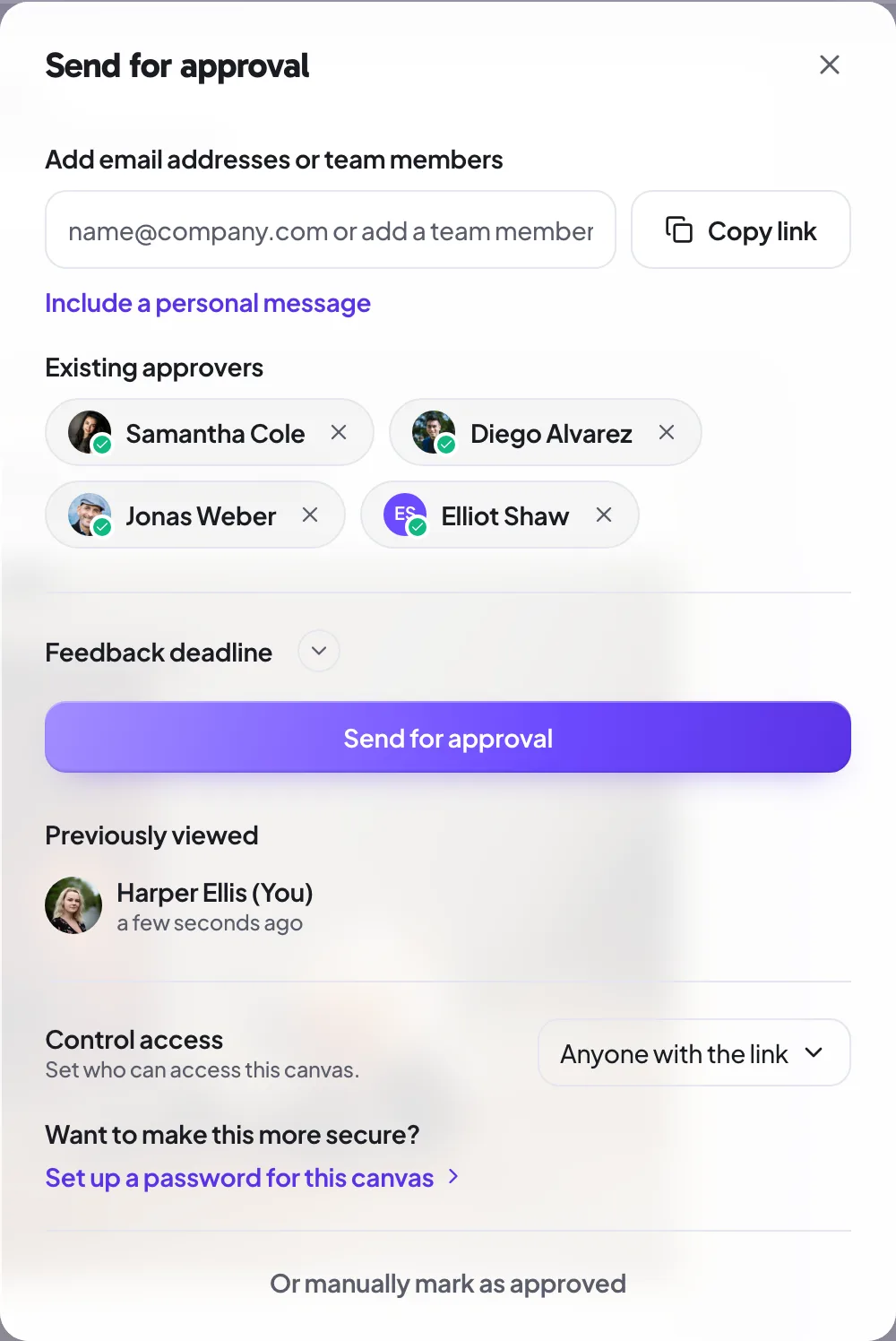
ProA simple campaign might need one approval. A regulated one might need several. In the Send for approval dialog, add multiple reviewers and require however many sign-offs the campaign needs before it flips to Approved. They all get the review link at once, in no set order. Multi-approver sign-off is available on Pro and above.
Password-protected approvals
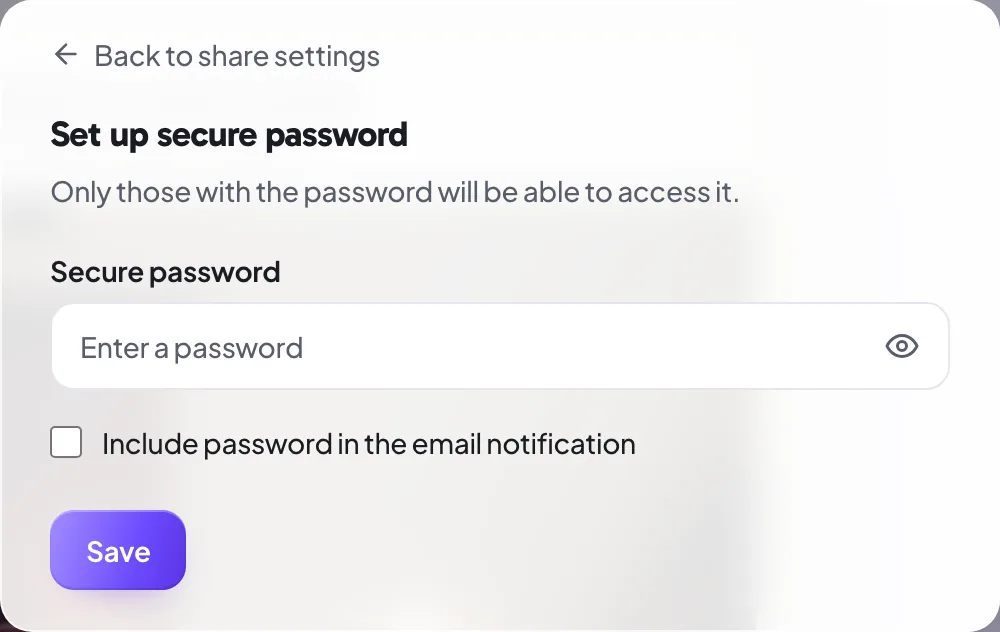
ProWhen you send an email for approval, you can set a password on the link from the Send for approval dialog. Reviewers enter it before they see the email. Passwords are hashed server-side with bcrypt, so Proofel never stores or transmits them in plain text. Password protection is available on Pro and above.
The guest reviewer experience
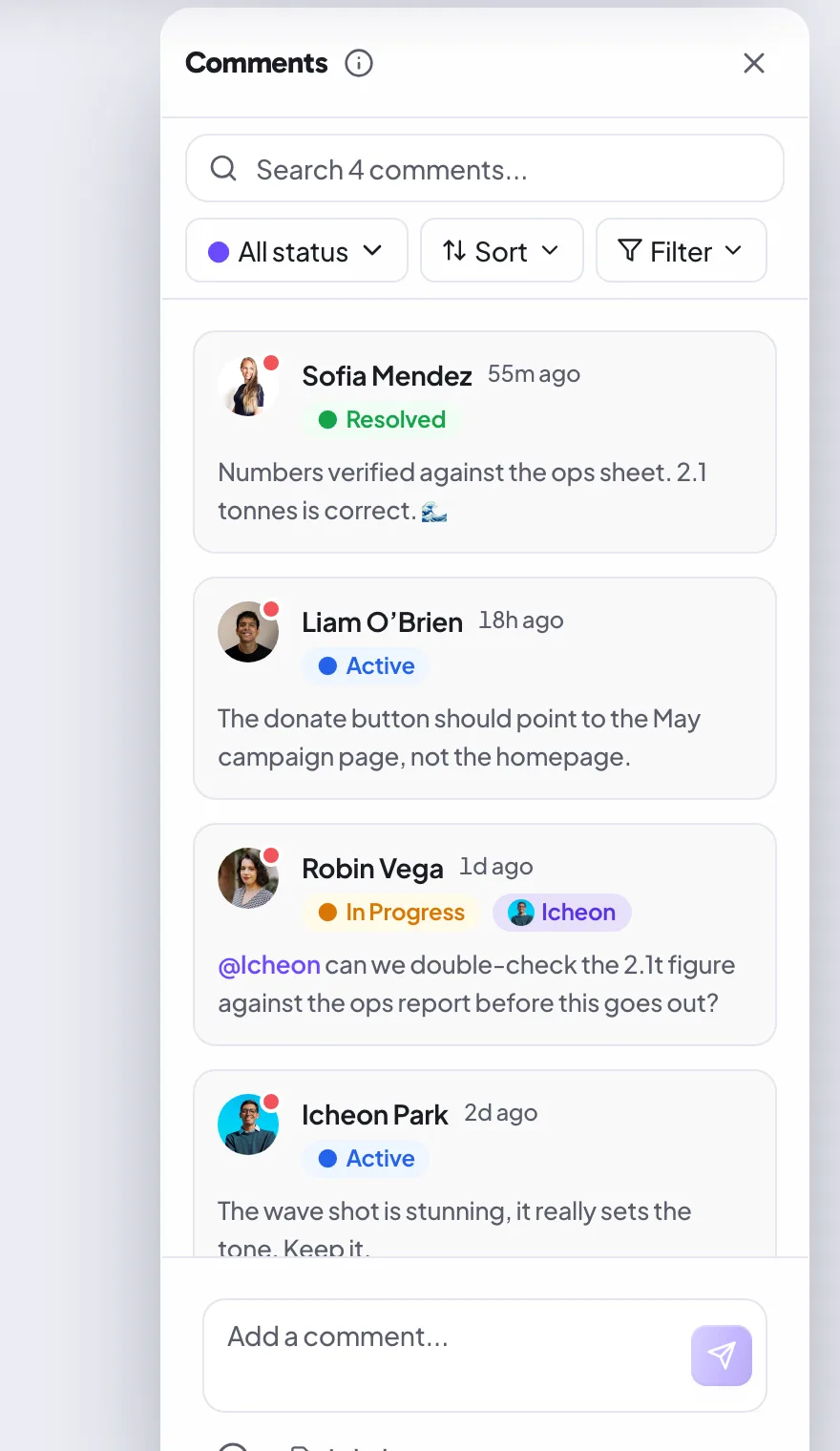
Reviewers on an approval link never need an account. They open your link, enter a display name so feedback is attributable, and can comment, annotate, resolve, and approve. Everything runs in the browser, including on a phone.
Folder sharing
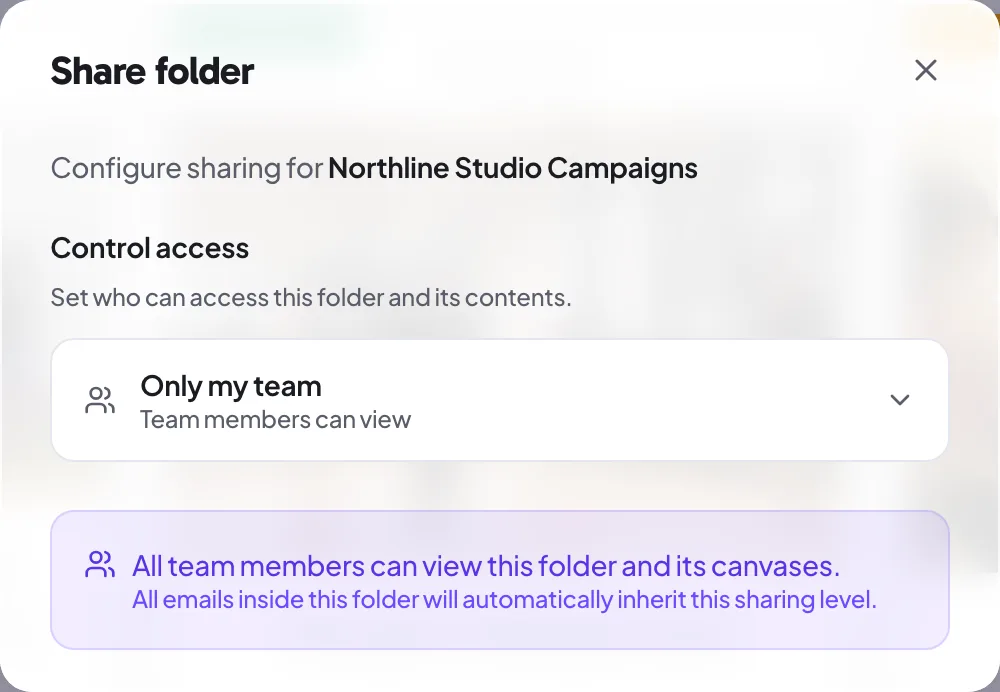
Group related emails into a folder (a campaign) and share the whole folder with one link from the folder page in your dashboard. A client or manager can review a full set of sends in one place instead of opening a separate link for each email.
Who has viewed
Active viewers show as profile avatars in the canvas header. Hover one to see the person's name and whether they are looking right now, so you can tell at a glance whether your reviewers have actually opened the latest version, and who is in the email with you.
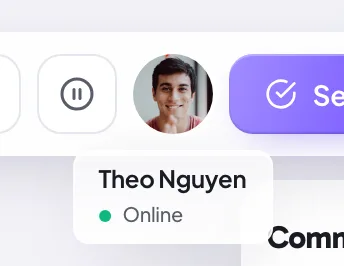
The header only shows people who are looking right now. To see who has previously viewed the email, open the Send for approval dialog: its Previously viewed list shows each person who has viewed this canvas, with a timestamp for when they last looked.
Still need a hand?
Cannot find what you are looking for? Our team is happy to help.
14-day all-access trial · no credit card required · reviewers never need an account