
Getting started
What Proofel is, getting your first email in, and finding your way around the dashboard.
What Proofel is (and is not)
Proofel is the review and approval layer for email campaigns: the step between "the design is done" and "we are cleared to send." You bring in the finished email, collect pixel-pinned feedback from your team and clients, track versions, and route a clean approval, all from one link.
The same link is also where the email gets checked. Every plan can preview it through 20 client lenses, simulate each client's dark mode, block remote images, locate Gmail's clip line in the document, and see the inbox row your subject and preheader produce. On Pro, a scored pre-send report adds a client support matrix, Outlook Word-engine lint, an accessibility audit that measures contrast inside a dark inversion, one-click fixes, an image audit, a SpamAssassin score, and a test send to your own inbox.
Proofel is not an email service provider. It does not send your campaigns. You keep sending from Klaviyo, Mailchimp, Braze, HubSpot, or wherever you send today. Proofel just makes the sign-off before that send calm and on the record.
It is also not a screenshot service. Proofel simulates clients by transforming your HTML and rendering the result, which is what lets a finding name the CSS declaration that broke, and what stops it promising a pixel-exact classic-Outlook render. That tradeoff is written up in full at how our simulation works.
Start your 14-day trial
Every new account starts with 14 days of full, all-access Team features. No credit card is required and nothing is charged automatically. Create an account from the sign-up page and you are in.
When the trial ends you keep a Free plan (3 active emails, 3 campaigns, unlimited guest reviewers, and unlimited versions) unless you upgrade. Nothing is deleted; features that are Pro or Team simply lock until you choose a paid plan. Paid plans start at $19 per month.
Get your first email in
First, create an email in Proofel: from your dashboard choose New email. Proofel generates a unique, permanent email address for it and shows it in the create dialog. That address is how your design gets in.
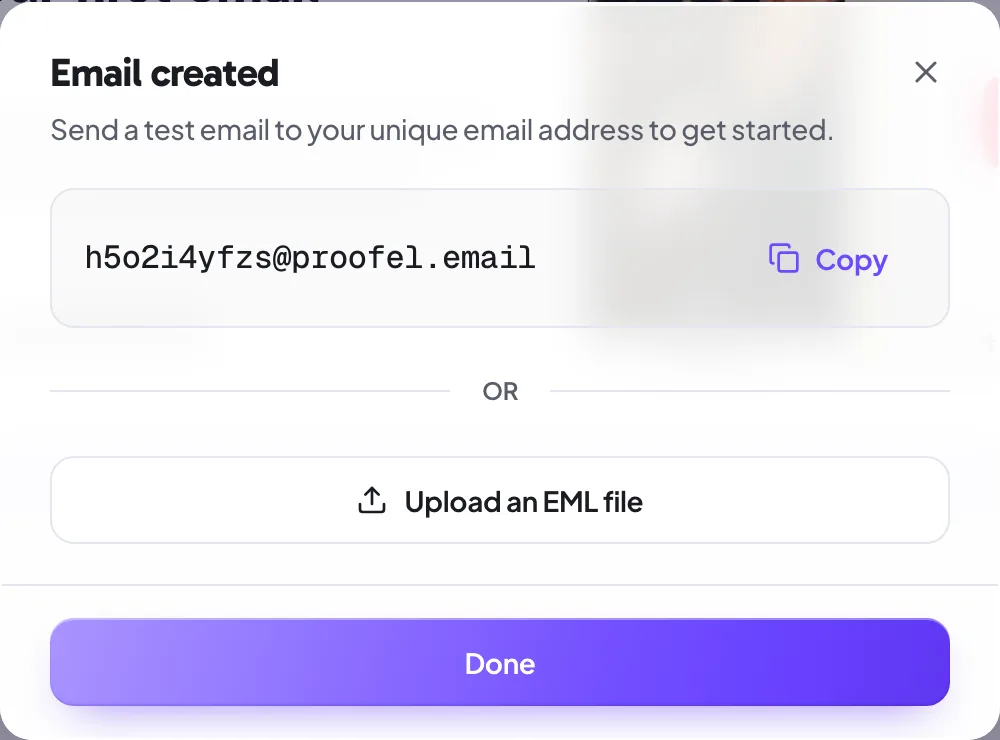
Bring your finished design in one of three ways:
- Forward it to that address. Forward your campaign (or a test from your ESP) to the generated address and it appears as a new version automatically.
- Send a test from your ESP. Point your provider's test send at the address instead of your inbox. The exact HTML your subscribers would get is what lands in Proofel.
- Upload an .eml file. Have the email saved to disk? Upload the .eml and Proofel parses the HTML, subject, and sender the same way.
However it arrives, Proofel sanitizes the HTML, caches the images to its own storage so previews keep working, and skips tracking pixels. Identical content is deduplicated, so re-forwarding the same export will not create a duplicate version.
My forwarded email did not show up
If you forwarded an email but no new version appeared, check these:
- You sent it to the exact address for that email (each email has its own; copy it from the create dialog or the version panel).
- The message actually contains HTML. A plain-text forward has nothing to render.
- Give it a moment. Ingestion runs when the message is received, usually within a few seconds.
- If the content is byte-for-byte identical to an existing version, it is deduplicated rather than added again.
Still stuck? Contact us with the email title and we will take a look.
Organize with campaigns and folders
Your dashboard is home base for every email. Group related emails into a campaign (a folder): create one from the dashboard, then drag emails into it or use an email's menu to move it between folders. Tag emails to slice across campaigns.
View your work three ways: a grid of cards, a list, or a Kanban pipeline organized by review stage. Advanced filters narrow by name, date, tag, status, share scope, or "assigned to me." Kanban and advanced filters are available on Pro and above.
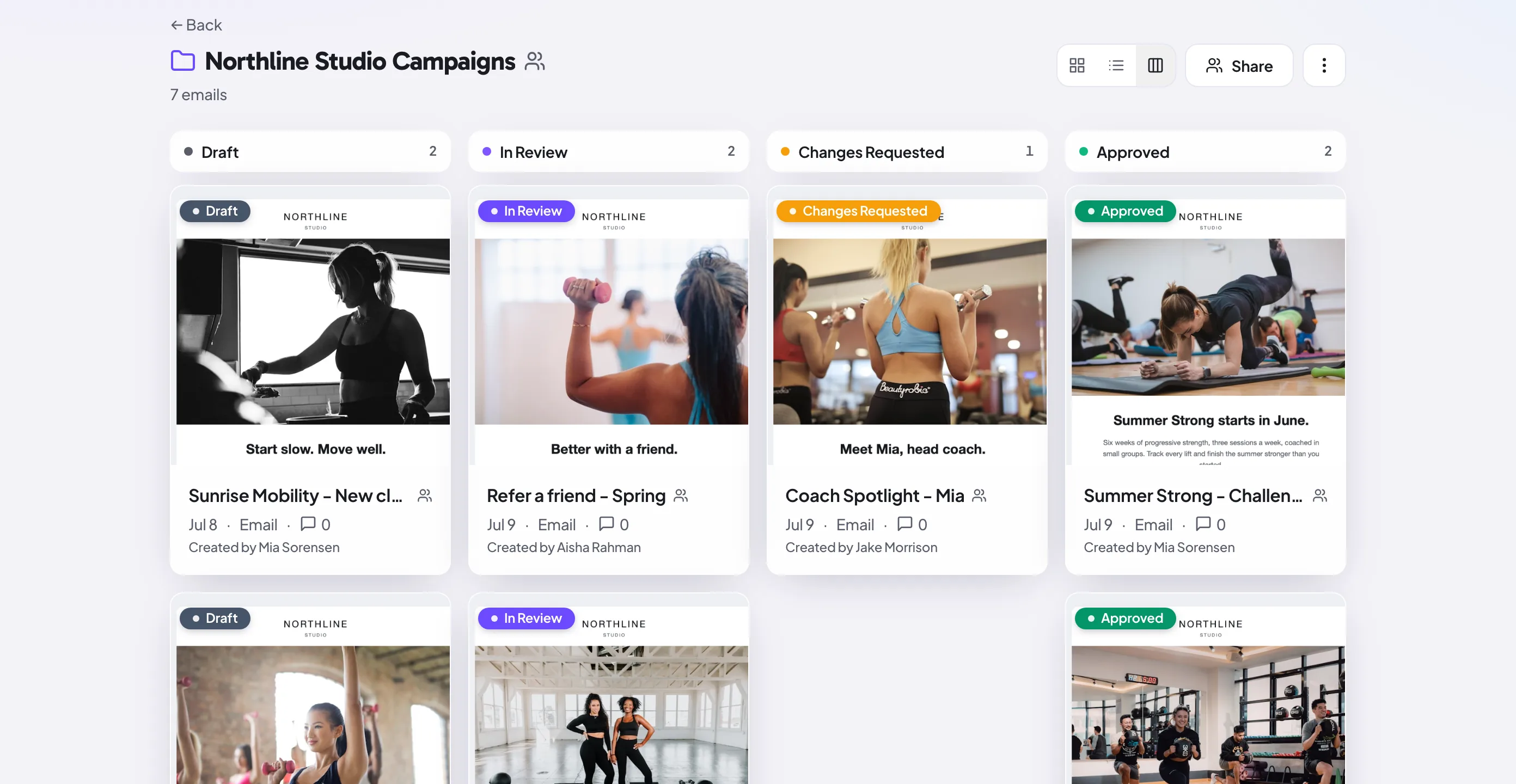
Emails are private to you by default. Move one into a team folder (or share it) to open it up to your workspace. See Sharing and approvals for access levels.
Archive or delete emails
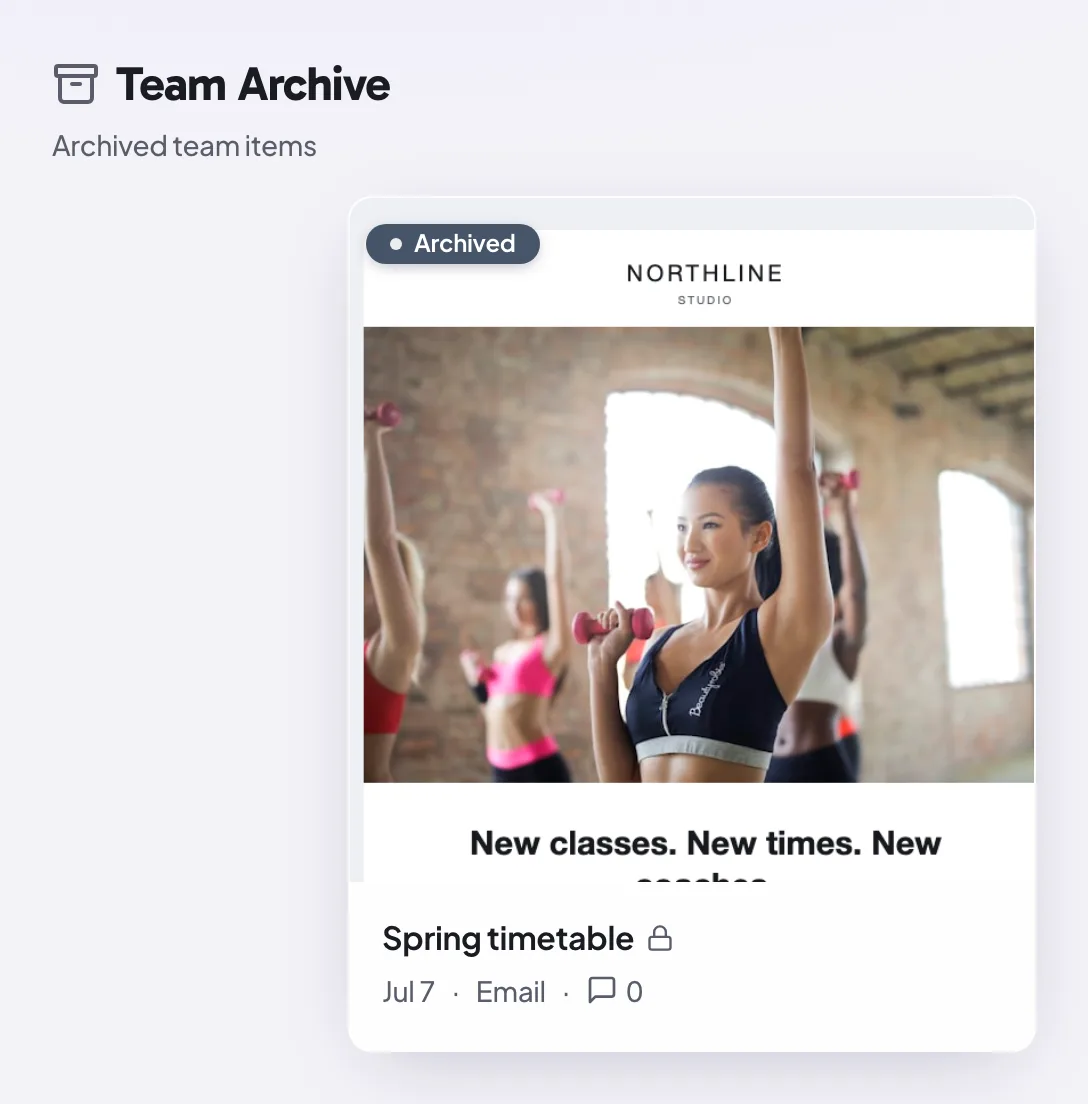
Keep your dashboard tidy by archiving emails you are done with: they move out of the main grid but stay available under the Archive view, so nothing is lost and you can restore them anytime. Deleting an email is permanent and removes it along with its versions, comments, annotations, and share links. On a team, whether members can archive or delete is governed by their role.
The command palette
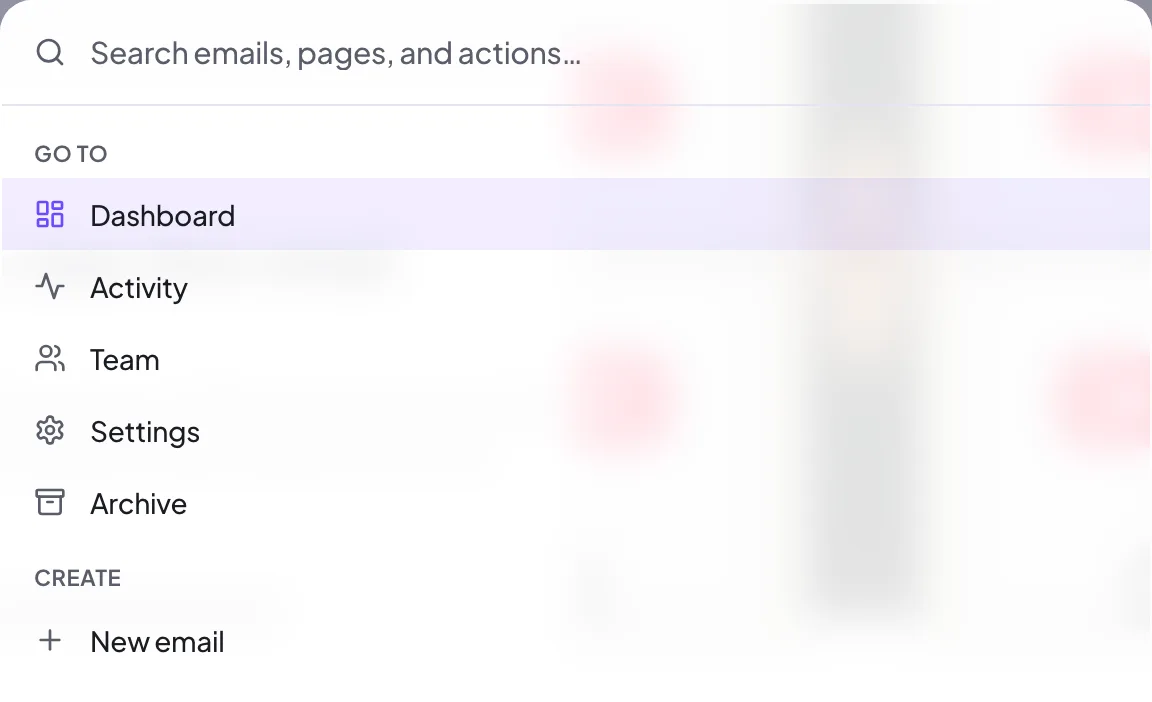
Press Cmd+K (or Ctrl+K) anywhere to open the command palette. Jump to any section, create a new email, toggle the theme, or search your recent emails and open one instantly. It is the fastest way to move around Proofel without reaching for the mouse.
Still need a hand?
Cannot find what you are looking for? Our team is happy to help.
14-day all-access trial · no credit card required · reviewers never need an account